
AI is rapidly changing how websites are designed—and Stitch AI is one of the most interesting tools to emerge in this space.
Originally introduced as a concept by Google, Stitch represents a new wave of AI-driven UI design tools that blur the line between designers and developers.
But here’s the real question:
Is Stitch AI actually useful for building real websites—or is it just another design experiment?
In this guide, we’ll break it down with real-world context, including:
- How Stitch AI works (with Google’s approach)
- What makes it different from other AI tools
- Its biggest limitation (this is critical)
- And how to convert Stitch designs into real, usable websites
What Is Stitch AI and How Does It Work?
What Is Stitch AI?
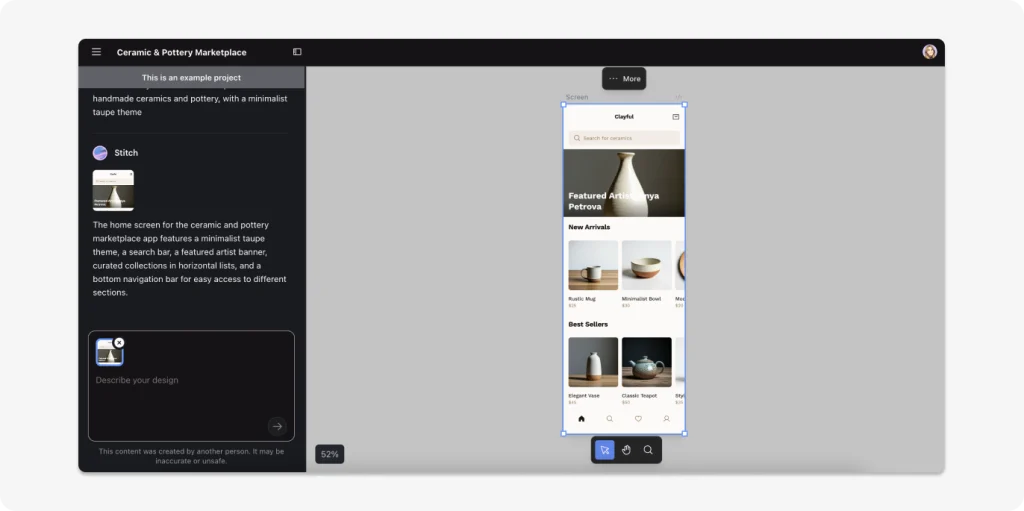
Stitch AI is an AI-powered interface design tool that generates UI layouts based on natural language prompts.
Think of it as:
ChatGPT—but for UI design.
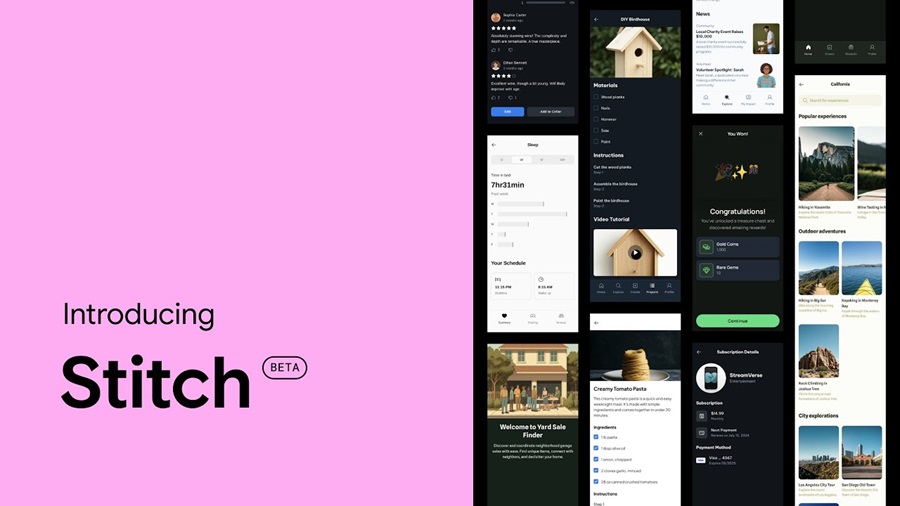
Instead of manually designing screens in Figma or coding layouts from scratch, you can simply describe what you want:
- “Education dashboard for AI learning platform”
- “Modern SaaS landing page with pricing section”
- “Dark theme fitness website”
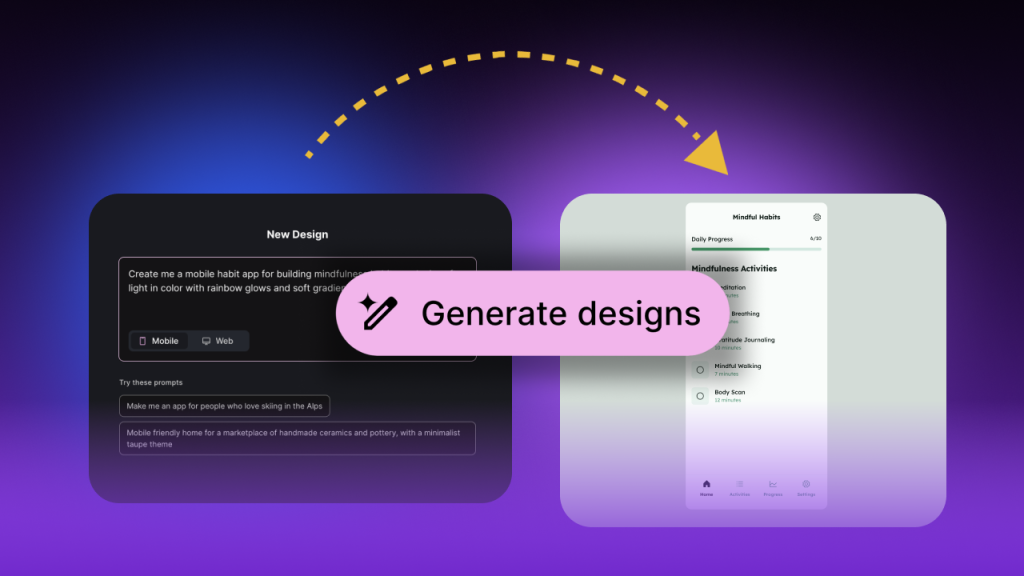
And Stitch will generate a complete UI layout in seconds.
The Google Angle: Why Stitch Matters
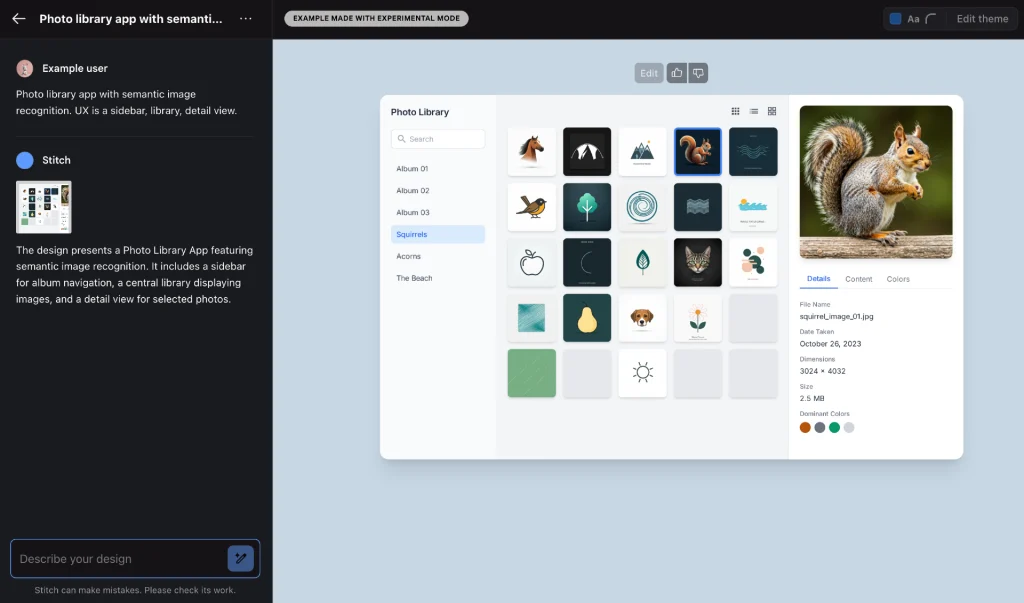
Google’s version of Stitch (accessible via stitch.withgoogle.com) gives us a glimpse into the future of design workflows.
It’s not just about speed—it’s about changing how interfaces are created.
Key innovations:
- AI-generated layouts from prompts
- Chat-based design refinement
- Integration with Figma
- Experimental mode powered by Gemini
This signals a major shift:
👉 From “designing interfaces manually”
👉 To “directing AI to generate interfaces”
Getting Started with Stitch AI
The onboarding experience is simple and intuitive.
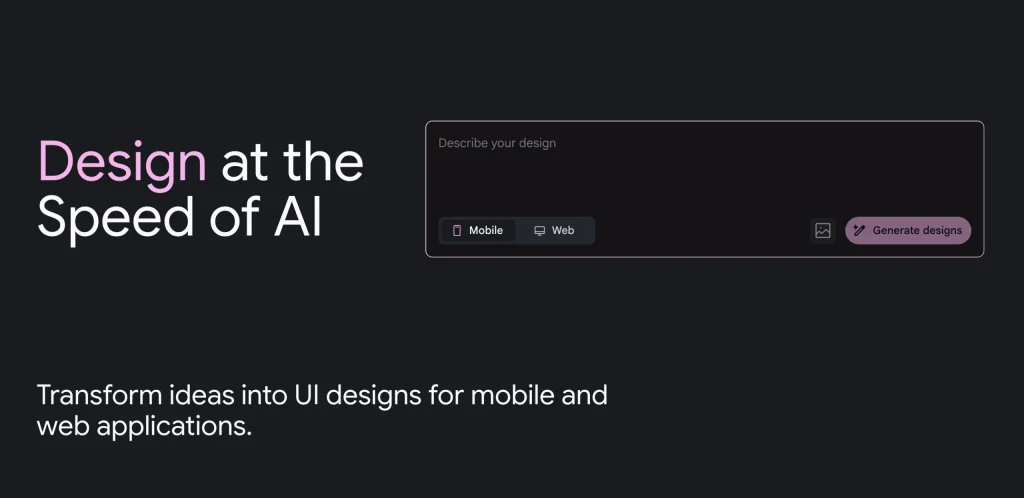
Step 1: Enter a Prompt
Example: “Create a premium luxury gym website”
Step 2: Generate Designs
Within seconds, Stitch produces:
- Trainer Profile
- Class Schedule
- Transformation Gallery
Step 3: Review the Layout
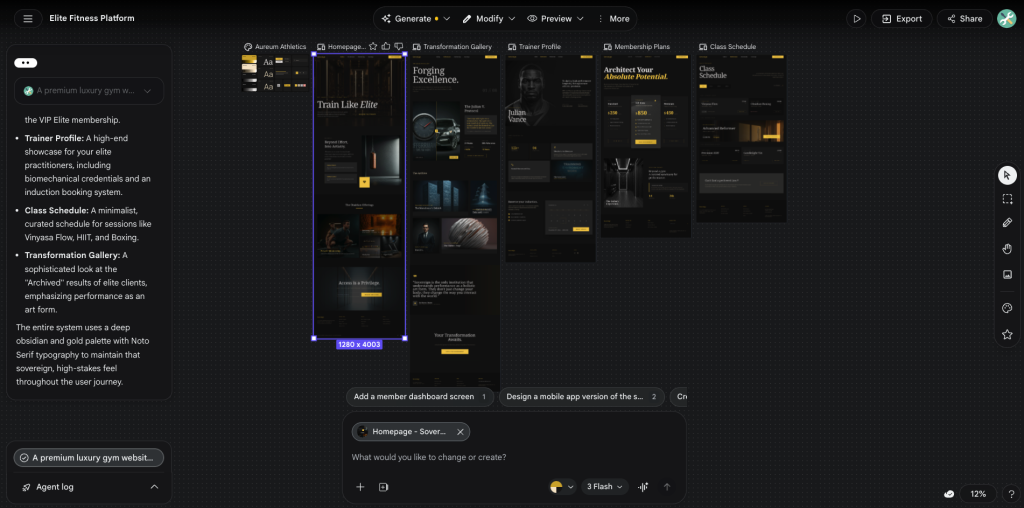
You get a clean, structured interface ready for iteration.
⚠️ Important: The design is visual only—no functional logic or real backend.
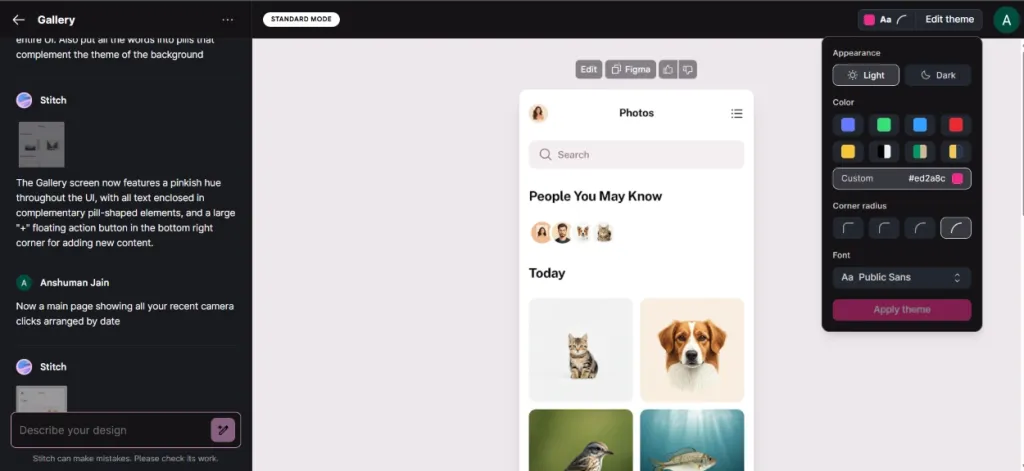
Customizing Your AI-Generated Design
One of Stitch’s strongest features is its flexibility. You can refine your design through:
Chat-Based Editing
- “Make it more minimal”
- “Add more spacing”
- “Change to dark theme”
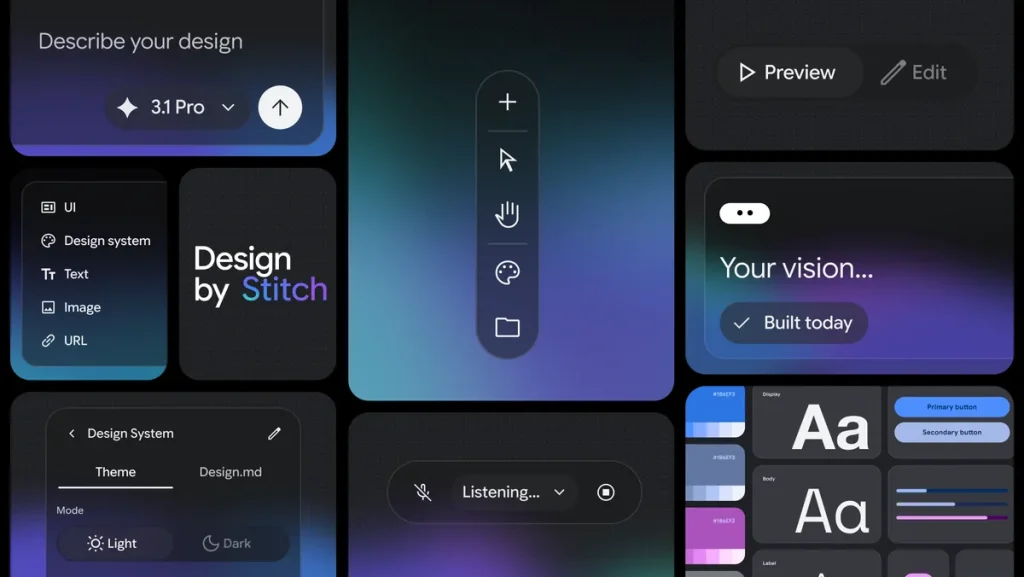
Visual Adjustments
- Color schemes
- Typography
- Corner radius
- Component styles
Theme Switching
Quickly toggle between:
- Light mode
- Dark mode
This makes Stitch feel more like a design assistant than a static generator.
Stitch + Figma: A Powerful Combination
One standout feature is its integration with Figma.
How it works:
- Click “Copy to Figma”
- Open Figma
- Paste into a new frame
What’s impressive:
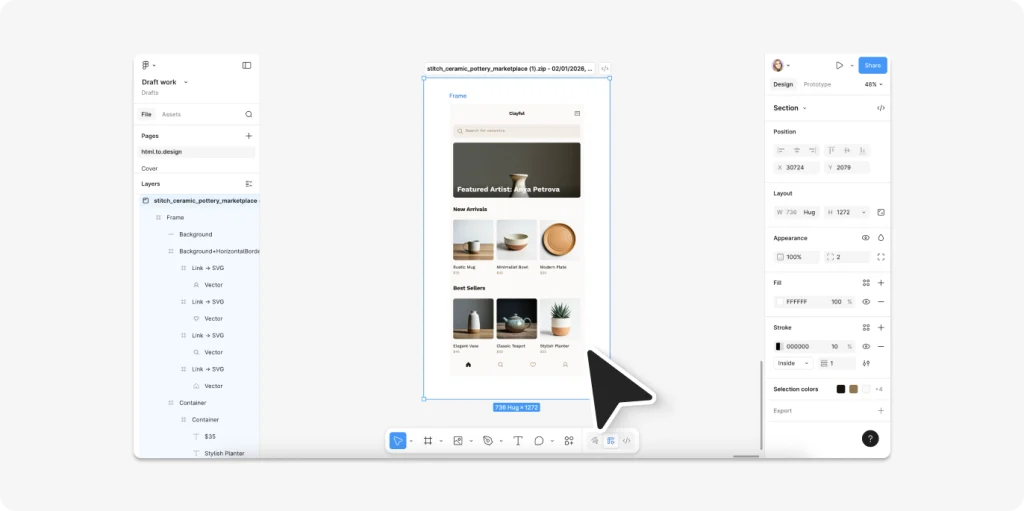
- Layer structure is preserved
- Components can be edited
- You can refine designs professionally
This bridges AI generation with real design workflows.
Experimental Mode (Gemini-Powered)
Stitch includes an experimental mode powered by Google’s Gemini models
What it enables:
- Higher-fidelity UI designs
- Image-based prompting
- More complex layouts
You can even:
- Upload an image
- Let AI reinterpret it into UI
⚠️ But: Results can be inconsistent and may require iteration.
The Biggest Limitation (Critical)
Here’s where most people get stuck:
👉 Stitch AI does NOT export to real website builders.
That means:
- No direct Elementor export
- No WordPress output
- No production-ready code
So while the UI looks amazing… You still can’t actually use it to launch a website.
Why This Is a Serious Problem
If you’re:
- A freelancer
- A no-code builder
- An agency
You don’t just need designs—you need deliverables.
Without export:
- You must rebuild everything manually
- You lose the time advantage
- AI becomes just “inspiration,” not execution
The Solution: Convert Stitch AI to Elementor
This is where you unlock real value.
Instead of rebuilding manually, use:
This tool allows you to:
- Extract layouts from websites
- Convert them into page builders
- Edit everything visually
How to Export Stitch AI to Elementor
Step-by-Step: Export Stitch AI to Elementor
Step 1: Generate Design
Create your layout using Stitch AI
Step 2: Access the Design URL
Make sure your design is publicly accessible or previewable.
Step 3: Import into ClonewebX
Transfer the output into ClonewebX project.
Choose output:
- Elementor
- Gutenberg
- Breakdance
- Bricks
- Divi5
- Webflow
Step 4: Export Layout
The tool converts the UI into editable components.
Step 5: Paste into Elementor
- Open Elementor
- Paste layout
- Customize content
👉 You now have a real website.
Why This Workflow Changes Everything
Instead of:
❌ Designing manually
❌ Rebuilding layouts
You now:
✅ Generate with AI
✅ Convert instantly
✅ Customize quickly
Stitch AI Pros and Cons
Ultra-Fast Design Generation
From idea → layout in seconds.
Clean UI Output
Modern, structured, conversion-friendly.
Great for Ideation
Perfect for brainstorming and prototyping.
No Native Export
The biggest limitation.
Not Production-Ready
Needs conversion before use.
Limited Functional Logic
Purely visual.
Stitch AI vs Other AI Builders
Let’s compare with:
- Lovable
- Vercel v0
Tool
Strength
Weakness
The Future of AI UI Design
Tools like Stitch are reshaping the industry.
What’s changing:
- Faster prototyping
- Lower barrier to entry
- Designers shifting to strategy
What’s NOT changing:
- Human creativity
- UX thinking
- Real problem-solving
AI won’t replace designers—but it will change how they work.
Best Workflow for 2026
Inspiration
Use: UIspired
Design Generation
Use: Stitch AI
Conversion
Use: ClonewebX
Publishing
Use: Elementor / Webflow
Final Verdict
Stitch AI is one of the most exciting AI design tools right now.
But on its own, it’s incomplete.
The real power comes when you combine it with:
👉 ClonewebX
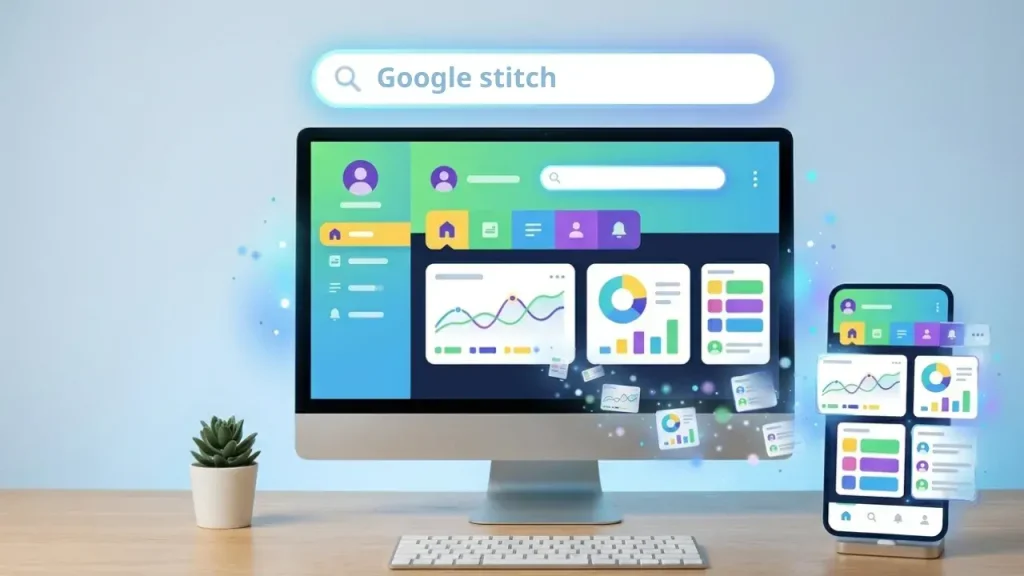
That’s when you move from:
“AI-generated design” to “real, deployable website”
Frequently questions & answers
What is Google Stitch?
An AI UI generator that creates layouts from text prompts.
Can Stitch AI replace designers?
No. It assists—but doesn’t replace creative thinking.
Can I export Stitch AI to WordPress?
Not directly. You need a conversion tool.
Is Stitch AI good for beginners?
Yes, especially for prototyping and learning UI design.